
Blog
Web portal development: types, features and how a portal is built
Web portal development for a business: the main types of portal, the parts every one of them needs, and the steps from a first scope to launch day.
Web portal development is the work of building a website that a known group of people sign in to, where each person sees their own records and can act on them. A customer checks an order, a supplier uploads an invoice, an employee books leave. Most of what a portal shows is kept in other systems, such as a CRM, an accounting package or an ERP. Building one is therefore as much about connecting to those systems, and deciding who may see which record, as it is about screens. This guide covers what counts as a portal, the common types, the parts every portal needs, how one is built step by step, and when an off-the-shelf product will do instead.
What is a web portal?
Merriam-Webster defines a portal, in its online sense, as a platform “that provides access to services or information of a specific kind”. When a business asks for a portal to be built, it usually means something narrower. Three things set a portal apart from the rest of a company’s website:
- Everyone signs in. Without an account, a visitor sees a sign-in page and perhaps some help text, and nothing else.
- Each person sees a different page. Two customers open the same address and get two different order lists.
- The records live somewhere else. The portal is a window onto systems the business already runs. It shows their data and passes requests back to them, and is rarely the place where that data is first stored.
Is Google a web portal?
Not in the sense above. The word had an older meaning on the web: Cambridge Dictionary’s computing sense is a site that helps people “get useful information and to find other websites”, and its example sentence is about internet access providers offering portals. A search engine’s home page comes close to that older idea. It is not a portal in the sense this guide uses, because nobody has to sign in and the results are not records that belong to you.
What’s the difference between a website and a web portal?
A website speaks to anyone who finds it. A portal serves people the business already knows, one account at a time.
| Website | Web portal | |
|---|---|---|
| Who it is for | Anyone who finds it | A known group, each person with an account |
| Sign-in | Rarely needed | Needed for almost every page |
| What a visitor sees | The same pages as every other visitor | Their own records, filtered by who they are |
| Where the content comes from | Written and published by the business | Mostly from systems such as a CRM, billing or an ERP |
| What a visitor can do | Read, and send an enquiry | Finish a task: pay, upload, approve, request, download |
| The worst mistake | A wrong page that everyone can read | One person's records shown to somebody else |
A portal is one kind of web application. Our explainer on what a web application is covers the wider family and how an application differs from a site.
What are examples of a web portal?
Portals are easiest to tell apart by who signs in. The last column below matters most when you plan one: two portals that look alike on screen can be very different projects if one reads from a modern system with an API and the other from software that only exports files.
| Portal | Who signs in | What they come to do | Where its data usually lives |
|---|---|---|---|
| Customer self-service portal | A company's customers | See where an order is, get copies of invoices, open a support ticket, change contact details | CRM, billing or accounting, help desk |
| Partner or dealer portal | Staff at resellers, dealers or distributors | Check trade prices and stock, place orders, register deals, find sales material | ERP, product catalog, CRM |
| Supplier portal | Staff at a company's suppliers | Receive purchase orders, submit invoices, see when they will be paid | ERP or purchasing system, accounts payable |
| Employee portal or intranet | A company's own staff | Read policies, request leave, see payslips, find forms | HR and payroll systems, a document store |
| Patient portal | Patients, sometimes a carer on their behalf | See test results, book appointments, message the practice | The practice's health record system |
| Student and parent portal | Students, parents and teachers | Timetables, grades, attendance, fee payments | Student information system, learning platform |
| Citizen or government portal | Residents and local businesses | Apply for a permit, pay a fee, follow an application | Case management and payment systems |
One portal often serves more than one of these groups. A manufacturer’s portal might let dealers order and suppliers invoice, with a separate set of screens for each.
What every portal needs
Accounts: who gets in, and who lets them in
Accounts reach a portal in one of three ways, and many portals use more than one:
- By invitation. The business creates the account, or sends a link that does. This suits partner and supplier portals, where only known companies should get in at all.
- By sign-up with a check. The person registers and proves their link to an existing record, for example with an account number and the email address already on file for it.
- By single sign-on. People sign in with an account they already hold elsewhere. Your own staff use the company directory. A large customer may ask for its staff to do the same through its own directory, which means the portal must accept sign-ins from more than one source. The two common standards are OpenID Connect, which its publisher describes as an authentication protocol built on OAuth 2.0, and SAML 2.0, an OASIS standard.
The day an account should close gets less planning than the day it opens. When your own employee leaves, disabling their directory account ends their single sign-on access. When someone leaves a customer’s company, your portal is usually the last to hear. Either the customer’s own administrator removes them (see “Companies inside the portal” below), or the customer’s directory tells the portal automatically. SCIM, defined in RFC 7644, is the standard written for that: an HTTP-based way to create, update and remove accounts across organizations.
One accessibility rule applies directly to sign-in. WCAG 2.2 success criterion 3.3.8, at level AA, says no step of signing in may depend on a test such as remembering a password unless the user gets an alternative or some help with it. (The criterion also allows two kinds of test that a password is not: recognizing objects, and recognizing content the person supplied themselves.) W3C’s explanation of the criterion counts password managers and copy and paste as that help, and says a sign-in form that blocks them fails. So never stop people pasting into the password field.
Who sees what: roles and ownership
Every request a portal answers raises two questions. The first is about the role: what kind of thing may this person do? A customer’s buyer may place orders; their finance contact may only see invoices. NIST describes role-based access control as “the predominant model for advanced access control”, and most portals start there.
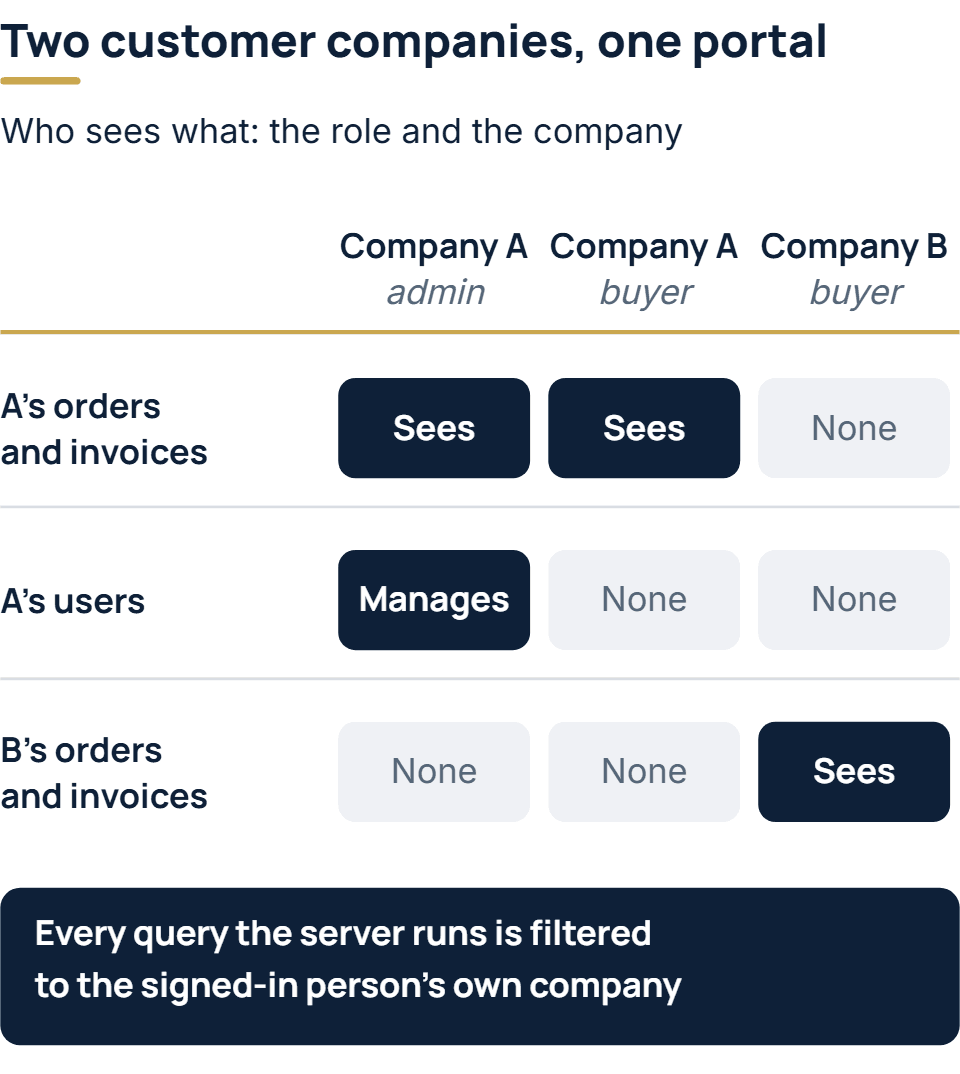
The second question is about ownership: which records are this person’s to see? This is where portals fail. The OWASP Top 10:2025 puts broken access control at number one and found some form of it in every application tested. One of the forms it lists is viewing or editing another person’s account by supplying its identifier. In a portal that looks like this: a customer sees invoice 1043 in the address bar, changes it to 1044, and reads another company’s invoice. OWASP’s advice is to deny by default and to have the code enforce record ownership. In practice, every query the server runs is filtered to the signed-in person’s own company, and a test signs in as two different customers and tries each one’s addresses from the other’s account. Password rules and the server-side check itself are covered in more detail in how to build a web app.
Companies inside the portal
In a portal for other businesses, people belong to companies, and the records belong to the company rather than to one person. A buyer who leaves does not take the order history with them; their successor sees it on day one. Each customer company usually gets its own administrator, who invites and removes colleagues and sets their roles. Without that, every new starter at every customer becomes an email to your support team.
Take two customer companies, A and B. Company A’s administrator sees A’s orders and invoices and manages A’s users. Company A’s buyer sees the same orders and invoices but cannot manage users. Company B’s buyer sees B’s orders and invoices and nothing at all of A’s.
Data from the systems you already run
The portal can reach each system’s data in one of two ways: ask the system every time a page loads, or keep a copy that is updated on a schedule or whenever something changes.
| Ask the system live | Keep a synced copy | |
|---|---|---|
| How current it is | Always current | As current as the last update |
| When the system is down | Pages that depend on it stop working | The portal still shows the last copy |
| Load on the system | Every page view is a request to it | Only the updates |
| Search and filters | Only what the system's API offers | Whatever the portal's own database can do |
| What can go wrong | Slow pages whenever the system is slow | Two copies that disagree |
Many portals mix the two: a balance or a stock level is asked for live, while order history comes from a copy. Requests travel the other way too. A ticket opened in the portal should land in the help desk, and an order should land in the ERP. For each kind of record, decide which system owns it, and do not let the portal become a second place where the same record is edited.
A record of who did what
Keep a log of who changed which record and when, and for sensitive records who opened them. It settles disputes such as “nobody here approved that order”, and it is what an access review reads when a customer asks who in their company has seen what.
How a web portal is built, step by step
- List the groups and what each one comes to do. Start from the emails and phone calls the portal should replace. Those requests are the tasks.
- Trace every task to its data. For each screen, name the system that holds the data and how the portal will reach it: an API, a database view or a file export. A system with no usable API changes the plan, so find out early.
- Choose how each group signs in: invitation, sign-up with a check, or single sign-on.
- Write the permission table. Roles down the side, actions and kinds of record across the top, and the ownership rule stated once. It becomes the access test plan.
- Cut the first release to the tasks that replace the most emails and calls. Personal dashboards and notifications nobody has asked for can wait until people use the portal.
- Design clickable screens and show them to a few real users from each group before any code is written.
- Build in slices. Each slice is one whole task, from sign-in through to the system that holds the record.
- Test access across companies with two accounts from two different customers, trying every address of one from the other, before a real customer signs in.
- Launch in waves. One friendly customer or one department first, with the invitation email and a short help page ready, then everyone else.
Build on a portal platform or build your own?
Which of three routes suits you depends mostly on how many systems the tasks touch.
- The portal that comes with a system you already use. Many CRMs, help desks and accounting packages include a customer portal. It is quick to switch on, but it shows that one system’s data in that system’s screens. It fits when one system holds everything your customers come for.
- A portal product or low-code builder. It is configured rather than programmed, and connects to other systems through the connectors it offers. Check how its price grows with the number of outside users, because a portal can have far more outside users than the business has staff.
- A portal built to order. Your own code over your own systems. It fits when tasks cross several systems, when the rules about who sees what are particular to your business, or when the portal is part of what your customers pay for. It costs more at the start, and the result is yours to change.
A quick test: list the systems each task touches. If every task touches the same one, and that system already has a portal, start there.
Which tools and frameworks are used to build a portal?
Any mainstream web framework can carry a portal. The choice matters less than the parts described above, which no framework settles for you: how people sign in, the rules for who sees what, and the connections to your systems. If you are choosing the front end, our side-by-side of React, Angular and Vue sets out what each includes, how long each version is supported and who maintains it.
What decides the cost and timeline
These are the things that move the estimate for a portal most:
- how many groups sign in and how many roles each one needs;
- how many systems the portal reads from or writes to, and whether each has a usable API;
- data to bring in from spreadsheets or an older portal;
- sign-in requirements, such as single sign-on through each large customer’s own directory;
- the accessibility level the portal must meet, and any rules that apply to the records it shows;
- the number of languages.
A credible estimate starts from the written list of groups, tasks and systems in the first two steps above. How to reach that number is covered in estimating software cost, with a worked example.
If you want a portal built
Our engineers have built customer self-service portals, and parent, student and teacher portals for education providers. Access control and an audit log are part of every system we deliver, and staff sign-in can go through Microsoft Entra ID, or through SAML or OpenID Connect for single sign-on. A project with us starts with a free call. We then write down the groups, the tasks and the systems involved, and price the work from that document as a fixed, itemized quote. Where the portal must link to older code or to several existing systems, we first carry out a short paid assessment, and the quote follows it. Before development starts you sign off the screens as clickable designs, and from then on you see the portal working at a weekly demo. At handover you receive documents that include the roles-and-permissions model, and the code and intellectual property are your company’s under every contract we sign. Our web application development services page sets out how a project runs, or tell us who your portal is for, and a reply comes back to you inside one business day.
The full service behind this post: Custom Web Application Development Company.
Ready to scope your project?
Send us two sentences about what you need. We reply within one business day with the next step and any questions we need answered first.